
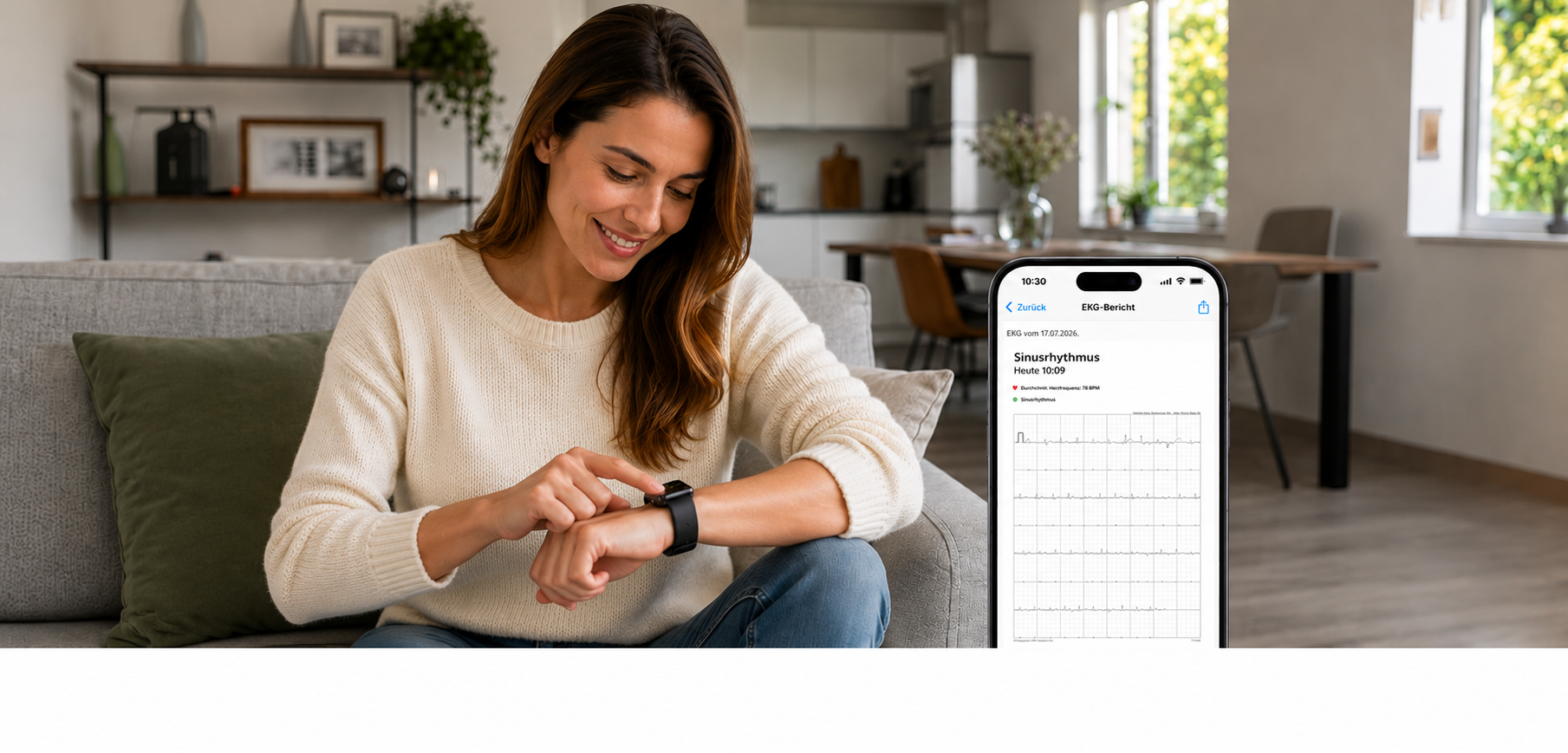
Have you recorded an ECG using your smartwatch or another device? If so, the way the ECG is saved and shared varies depending on the manufacturer.
The procedures for the most common manufacturers are listed below. This will help you quickly find your ECG recording and send it to myritmo.

Record an ECG with the Apple Watch and send it to CardioCheck
Here’s how to send your ECG to CardioCheck for analysis:
1. Record an ECG
First, record an ECG using your ECG-enabled Apple Watch.
2. Open the ECG
Open the Health app on your iPhone.
Go to: Browse → Heart → Electrocardiograms (ECG)
Select the desired ECG.
3. Share the ECG as a PDF
Tap the Share icon (square with an upward arrow) in the top-right corner.
Select “Export as PDF.”
Then select “Share” and choose CardioCheck.
If CardioCheck isn’t listed, select “More” and search for CardioCheck there.
Important: Please send the complete ECG PDF file and do not modify the file before sending it.
Done! Your ECG will now be securely transmitted to CardioCheck.
Tip: If you’re using CardioCheck for the first time, open the CardioCheck app first and follow the steps displayed there.

Record an ECG with Withings and send it to CardioCheck
Here’s how to send your ECG to CardioCheck for analysis:
1. Record an ECG
First, record an ECG using your Withings device that supports ECG.
2. Open the ECG
Next, open the Withings app on your smartphone.
Select the desired ECG recording.
3. Share the ECG as a PDF
Tap: “Share this measurement as a PDF”
Then tap the share icon and select CardioCheck.
If CardioCheck isn’t displayed, select “More” and search for CardioCheck there.
Important: Please send the complete ECG PDF file and do not modify the file before sending it.
Done! Your ECG will now be securely transmitted to CardioCheck.
Tip: If you’re using CardioCheck for the first time, open the CardioCheck app first and follow the steps displayed there.

Record an ECG with the Samsung Galaxy Watch and send it to CardioCheck
Here’s how to send your ECG to CardioCheck for analysis:
1. Record an ECG
First, record an ECG using your ECG-enabled Samsung Galaxy Watch.
2. Open the ECG
After the measurement, the ECG will sync with your connected Galaxy smartphone.
Open the Samsung Health Monitor app on your phone and select the desired ECG recording.
3. Share the ECG as a PDF
Select the option to share the ECG report.
Then select CardioCheck as the destination for sharing.
If CardioCheck isn’t displayed, select “More” and search for CardioCheck there.
Important: Please send the complete Samsung ECG PDF report and do not modify the file before sending it.
Done! Your ECG will now be securely transmitted to CardioCheck.
Tip: If you’re using CardioCheck for the first time, open the CardioCheck app first and follow the steps displayed there.

Record an ECG with Garmin and send it to CardioCheck
Here’s how to send your ECG to CardioCheck for analysis:
1. Record an ECG
First, record an ECG using your Garmin device with ECG capability.
2. Open the ECG
Next, open the Garmin Connect app on your smartphone.
Go to: More → Health & Performance → ECG
Select the desired ECG recording.
3. Share the ECG as a PDF
Tap the three dots (⋮) in the upper-right corner.
Select “Download PDF Report.”
Then open the PDF report and tap “Share.”
Select CardioCheck.
If CardioCheck isn’t displayed, select “More” and search for CardioCheck there.
Important: Please send the complete Garmin ECG PDF report and do not modify the file before sending it.
Done! Your ECG will now be securely transmitted to CardioCheck.
Note: The ECG feature is only available on certain Garmin models and in select regions.